Questions & answers
Everything about joining, paying, making animated stories and your videos.
What is VivaVid?
VivaVid turns your images into short animated videos and stories, and makes talking-presenter videos. Each scene is animated in the cloud, the scenes are joined into one movie, music is added, and the finished video is saved to your account.
What is My Clone and Clone Me?
When cloning is available on your account (it is being rolled out), My Clone makes a clone of you from one short video: your face, the way you move and talk, and your own voice. Open My Clone (under My Presenters), record in the page with your camera or upload about 2 minutes (at least 15 seconds) of yourself talking to the camera in a quiet room, tick that it is you, and press Make my clone. Our video partner then asks you to say one short sentence on camera to confirm it is you - this protects everyone from being cloned without permission. After a few minutes your clone is ready. On Create, press Clone Me, type your words and press Create my clone video: your clone says them in your voice. You can delete your clone (and its voice) at any time.
Can I change my presenter’s voice?
Yes. Before you create a Product Ad, the last step shows Avatar voice: choose Male or Female and one of the voices listed for your language (every male voice is checked to sound male, every female voice to sound female), then press Test Avatar Voice to hear your ad’s first words in that voice. Not happy? Press Change voice and test again. Create my promo video unlocks only after you approve a voice, and your choice is remembered for next time. A finished video cannot be re-voiced, because the lips are made to match the voice, so to change the voice of a video you already made, make it again with the same presenter and a new voice. You can also use your own Brand Voice.
What is Smart Ad?
The quick way to make a Product Ad, and the way Option 1 opens. Upload or drag your product photo into the box, then complete the Describe your ad form: Length, Presenter, Language, Tone, Setting, Product and Narration (Call to action, Format and Must not show are optional). The Narration is spoken exactly and must fit the length: 5 sec = 12 words, 10 sec = 24, 15 sec = 36, 30 sec = 72, 45 sec = 108, 60 sec = 144. Press Plan my ad and AI makes 4 ads to choose from, with pictures. A product website is optional. To use your own presenter from My Presenters or Record Twin, choose it under “Use my saved presenter, voice and brand” or write its name on the Presenter line (for example “Sam”); you can also choose My Brand Voice, and your Brand Blueprint and Brand Kit are applied. Your form is saved to your account, so next time it is already filled in. Choose an ad and continue as usual; the picture is checked before you see it, and no video is paid for until you approve it. Press All options to see or change every setting. Planning is free.
Is it free to join?
Yes. Creating an account is free, with no subscription and no card needed. You only pay for the scenes you generate, from a prepaid balance you top up when you need it.
How much does it cost?
Each 10-second Animate scene costs $2.00 at 720p HD or $3.00 at 1080p Full HD. The Realistic tier costs $3.00 per scene. Joining scenes into one movie, adding music, saving to My Videos and downloading are free. The page shows the total cost before you press Generate.
What is a Multi-scene video on the Create page?
Create makes a video in which your presenter speaks in every scene. Step 1 - Presenter: choose a ready-made presenter, describe one for AI to create, use one from My Presenters, or upload your own photo. Step 2 - Sound: record about 30 words, upload a voice sample, or choose a ready-made voice. Then choose the number of scenes (2 to 12), the language your presenter speaks and the video format, and give each scene its picture and the words to say: type them in the scene cards, drag in a narration file (TXT, Word or PDF), paste a numbered script (for example 1 - Introduction: "your words"), or let AI write or correct them. "Create scene images from these narrations" makes presenter-led pictures for you. You can also drop a Story ZIP (pictures + script) in the upload box - the same ZIP Animate takes. VivaVid makes every scene in your voice and joins them into one video in My Videos.
How much does a video made on the Create page cost?
The price depends on the real work your video takes, so it is shown after the video is made - in the production report under the video (Video Cost / USD), on its card in My Videos and on its invoice in Billing. You need enough balance before a video starts - if not, VivaVid tells you how much to add. If the video fails you pay nothing; if you stop it part-way, the scenes not yet made are not charged. Every charge has an invoice you can download in Billing > Transaction history.
What is a Product Ad (Option 1 on the Create page)?
Upload one picture of your product, app or offer, type the words your presenter says (or let AI write them from your brief), and choose the length: 5 to 60 seconds. VivaVid prepares a talking presenter and shows you a preview before anything is made. Ads of 15 seconds or longer are made as scenes, like a real social media ad: the same presenter in a new setting each time, with one benefit as a big headline per scene (15 s = 2 scenes, 30 s = 4, 45 s = 6, 60 s = 8). Check every scene picture and its words, press Remake picture on any scene you want to change, then press Create my promo video. The finished video is saved to My Videos.
Can VivaVid fill in my ad from my website?
Yes. In Option 1 (Product Ad) and on Brand Kit, type your website address and press Auto-fill. VivaVid reads your public page and fills in the main picture, your brand name, logo and colour, and a short brief with your benefits. Check and edit anything before you continue.
What happens when I choose Let AI write it from my brief?
AI writes 3 short narration options from your brief. Each one fits the length you chose (about 12 words for 5 seconds, 24 for 10, 36 for 15) - anything longer is shortened before you see it. Tick the one you like; you can still edit its words before the video is made.
What is Pitch me 4 ideas?
Before anything is paid for, VivaVid suggests four different ad ideas - each with its angle and the exact words. Press Use this idea and its words go into Say my words exactly, where you can still edit them. It only writes words, so there is no video cost.
Can I change just one scene?
Yes. Under any scene picture (from scene 2), type what to change - for example 'brighter' or 'holding the phone' - and press Change this scene. Only that picture is made again.
How much will my video cost before I make it?
The price box shows an Estimated price for your words' length, worked out from the real cost of recent videos. It is an estimate: the final price is the measured cost and is shown after the video is made. A failed video is not charged.
What can I do after my Product Ad is made?
Under the finished video, Finishing touches adds background music and captions (free, made in your browser), makes the other sizes - 9:16, 1:1 and 16:9 (free) - and saves the result to My Videos. More versions makes the same ad with two other openings to test which works best, or in another language; each version is a new video and is priced like one.
Who is the presenter in a Product Ad?
Choose Person in my photo to make the person in your uploaded picture the presenter - your picture's words, icons and benefits stay visible, with no white boxes. Tick Use my photo exactly as it is to use your picture with no AI changes. Choose New AI presenter to have AI create a presenter that suits your product, shown with your product. Or choose My saved presenter, which is faster because no new presenter picture is made.
What is the Picture made with choice?
It picks which picture AI makes your presenter and scene pictures: Gemini image (Nano Banana), which is the default and keeps printed words most accurately, or OpenAI image. If one cannot make a picture right now, try the other.
Is the Click & Go button in my ad a link?
Yes, when the video plays in VivaVid (on Create and in My Videos): the button at the bottom of your ad's picture opens VivaVid. An MP4 file cannot contain a clickable link on its own, so when you post the video on Facebook, Instagram, TikTok or YouTube, add the link to your post or ad there.
Can I choose my presenter's pose?
Yes. In Option 2 on the Create page, under your presenter, tick Standing - full body, Standing - half body or Sitting, then press Make my presenter in this pose. AI redraws the same person, in the same clothes and background, in that pose. Undo pose brings your photo back.
How do I organise my videos into projects?
Open Projects and press Create project. In My Videos, use the Project box on any video to move it into a project (or choose New project there). Use Show at the top of My Videos to see one project's videos. Deleting a project never deletes its videos.
Is there a storage limit on My Videos?
Yes: uploads, joined clips and videos with added music count toward 20 GB per account. Videos you pay to make are always saved. If My Videos is full, VivaVid tells you before uploading; download or delete older videos, then save again.
Can every new video go straight into a project?
Yes. On Create and Animate, choose the project in Save new videos to project (or press New project, for example one per client or brand). Every video saved after that goes into that project automatically. Choose No project to stop. Open … videos shows that project's videos.
How do I delete a saved presenter?
Open My Presenters and press Delete on the presenter. Its photo and record are removed from your account.
Which currency are prices in?
US dollars (USD). If your card is in another currency, your bank converts the amount on your statement.
Should I use Animate or Create Multi-scene?
Use Create > Multi-scene when your presenter should talk in every scene - a promotion, a lesson, an influencer-style video. Use Animate when your pictures should move with music and no talking. The same Story ZIP works on both pages.
Where does my presenter's voice come from?
From Step 2 - Sound on the Create page: upload a clear recording, or press Record voice and read about 30 words in a language you speak. Or, with no recording at all, choose a ready-made professional voice (Or choose a ready-made voice): hear it first, then your presenter speaks with it. That one voice is used for the whole video, for every scene. The Video setup preview near Generate Video shows which voice will be used.
How do I choose my presenter?
In Step 1 - Presenter on the Create page: pick a ready-made presenter (Browse presenters), describe a new one and let AI create it, or add your own photo through the upload box (OR add your content to create your own Presenter). A photo you use can be saved with Save in My Presenters. To reuse a saved presenter, open My Presenters and press Use in new video - Create opens with that presenter selected (shown as My presenter, From My Presenters).
What is the Video setup preview?
Just above Generate Video, the Video setup preview shows your presenter on the chosen background in the chosen video shape (16:9, 9:16 or 1:1), and lists every choice: presenter, voice, language, number of scenes, background, format, quality and music. Change anything above and it updates, so you can check everything before you generate.
Where did my avatars go?
Nothing was removed - VivaVid now calls them presenters. Your saved ones are in My Presenters (the same page as before), and the ready-made ones are under Step 1 - Presenter on the Create page.
Does VivaVid keep my cloned voice?
Yes, after your first talking video VivaVid keeps your cloned voice, so your next videos with the same voice sample are made faster without cloning it again. It is used only for your own videos. Delete it any time on Account > Your saved voice; it is also deleted when you delete your account. Your uploaded voice recording itself is removed from our processing storage straight after each video.
How do I pay?
Open Billing and add funds with PayPal - with your PayPal account, or with a debit or credit card through PayPal's checkout without a PayPal account. The minimum top-up is $5. VivaVid never sees or stores your card details. Your balance is always shown at the top of the page.
Can my balance top up automatically?
Auto-reload is coming soon. Until then, add funds on the Billing page whenever you need; your balance never goes below zero and nothing is charged without a scene being started.
What happens if a scene fails?
If a scene cannot start, its charge is refunded to your balance automatically. Scenes that finished are kept, and pressing Generate again only generates the ones that are missing, so you never pay twice for the same finished scene.
How long does an animated story take?
Each scene takes a few minutes. The total depends on how many scenes you have, how busy the video service is, and your internet speed. The progress bar shows how long it has been running and when the status was last checked.
How do I build a story from a Story ZIP?
Choose the Story ZIP tile under Build scenes on the Animate page and drag in, or click to choose, one ZIP containing your scene images (JPG, PNG or WEBP) and your story instructions (Word .docx, PDF, .txt or .md). VivaVid builds the storyboard - Scene 1, Scene 2 and so on, each with its image and description - so you can edit, replace, reorder or delete scenes before generating.
Can I use ONE picture with all my scenes on it (a storyboard card)?
Yes - no need to upload each picture or make a ZIP. Make one image with your scene pictures in a grid (like the sample below), each with its caption under it, on a light background. On the Animate page choose the Storyboard card tile under Build scenes and drop it in (dropping it into Create scenes manually works too). VivaVid finds every picture, makes each one a scene, reads the caption under it as that scene's motion description, then automatically removes the numbers, time labels, frame and text from each picture with AI - so only the scene itself is animated. Check the scenes and descriptions, edit anything you like, then press Generate. Generate stays locked until the split and clean-up are finished, so the card is never animated as one scene.
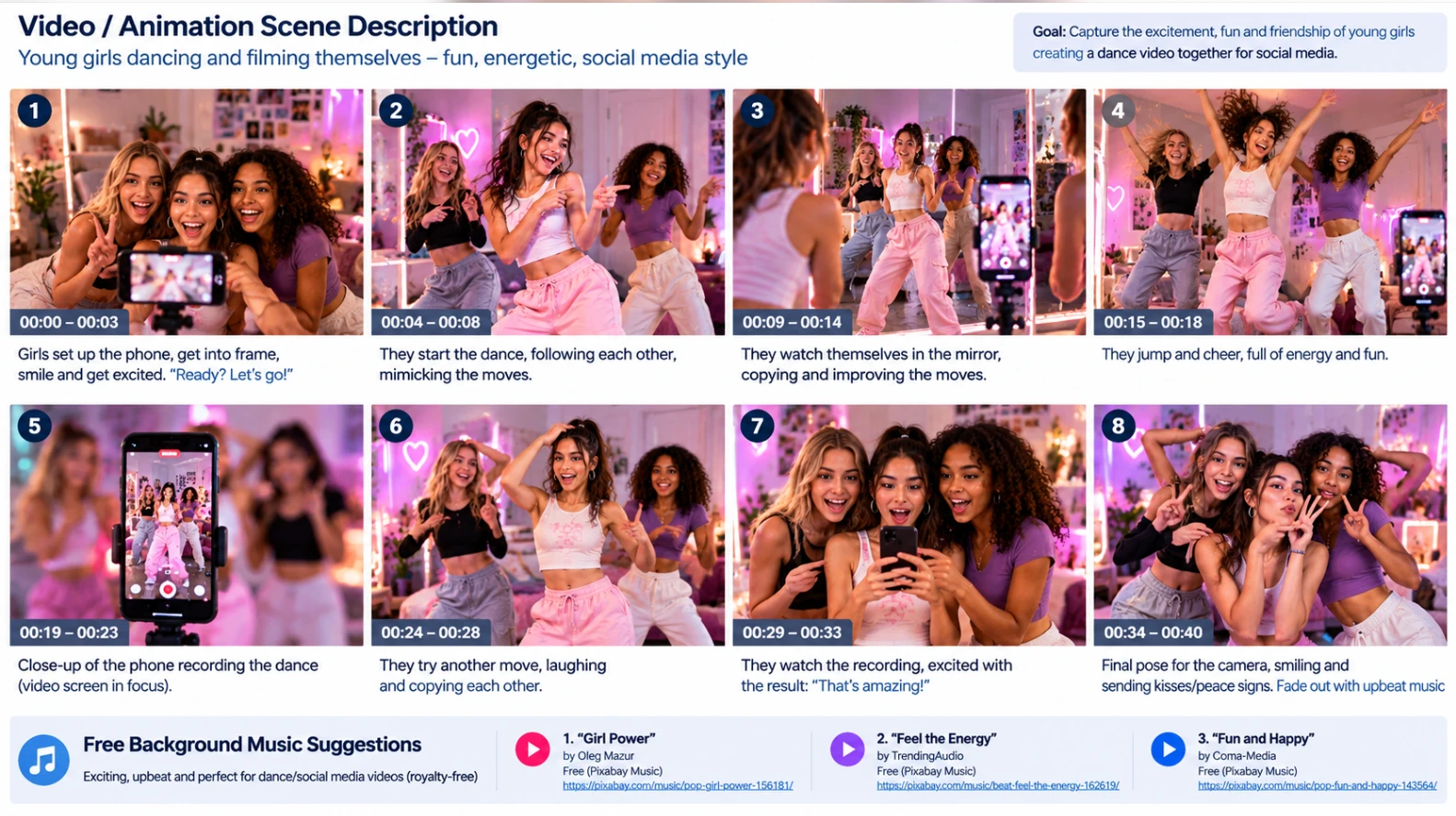
How should I write the instructions file?
For each scene write SCENE 1, then Image: the image file name, then Motion: (or Description:) and what should move and how the camera moves. Without instructions, images are ordered by file name (scene1, scene2...) and you type the descriptions yourself.
Can I add music?
Yes, free. Open the Music Box: tap any clip in the deck to hear it, filter by mood (Happy, Dance, Energy, Fun, Adventure, Chill), and press Add to animation on the one you like. Or upload or drag in your own music or voice-over (MP3, WAV, M4A, AAC, OGG, OPUS, FLAC, WEBM). The music loops to fit the full length of the movie and fades out at the end. You can change it after the movie is made at no cost.
Can I use the Music Box music anywhere? Is it safe for schools?
Yes. The built-in clips are real music by Kevin MacLeod (incompetech.com), free for any use - including schools, YouTube and social media - under the Creative Commons Attribution 4.0 licence. The only condition is credit: when you pick a clip, the Music Box shows its credit line with a Copy button - paste it into your video's description when you post it.
Should I choose 720p or 1080p?
720p HD is good quality at the lower price. 1080p Full HD is sharper, costs more and takes longer. Resolution does not change how the character moves - clear descriptions and consistent images do.
Where are my videos?
Every finished movie is saved automatically to My Videos on your account, where you can play, download or delete it on any device you sign in on. Each finished scene is also saved there as a separate clip.
Can I join clips I already made?
Yes. In My Videos tick Select to join on two or more clips in the order they should play, choose music, and press Join. It is free - nothing is regenerated - and the joined video is saved to My Videos. Clips must all be the same resolution.
Why do I get a code by email when I sign in?
Every sign-in has a second step: after your password (or Google), we email a 6-digit code to your account's email. Enter it on the sign-in page. It expires after 10 minutes; press Resend code if it does not arrive (check spam too).
How do I protect my account with Google Authenticator?
On the Login page choose Set up Google Authenticator, sign in and enter the emailed code - the setup opens right there (or use Account > Set up Google Authenticator). Scan the QR code, enter the 6-digit code and save your recovery codes. From then on you can sign in with the code from your phone instead of waiting for the email.
Which devices does VivaVid work on?
Any modern browser on iPhone, Android, tablet or computer. Joining scenes and adding music happen in your browser, so keep the tab open until the movie appears.
What happens to my uploaded images?
Images are uploaded only to generate your scenes and are deleted from the processing storage straight after. Your finished videos stay in your account until you delete them.
Joining is free — you only pay for the scenes you generate.